What a DXF file is
DXF is the format CAD programs use to hand 2D drawings to each other. Autodesk introduced it with the first AutoCAD in 1982 so that other programs could read AutoCAD’s drawings, and it still publishes the specification. Almost every CAD program, laser cutter, CNC router, plasma table and vinyl cutter can read it.
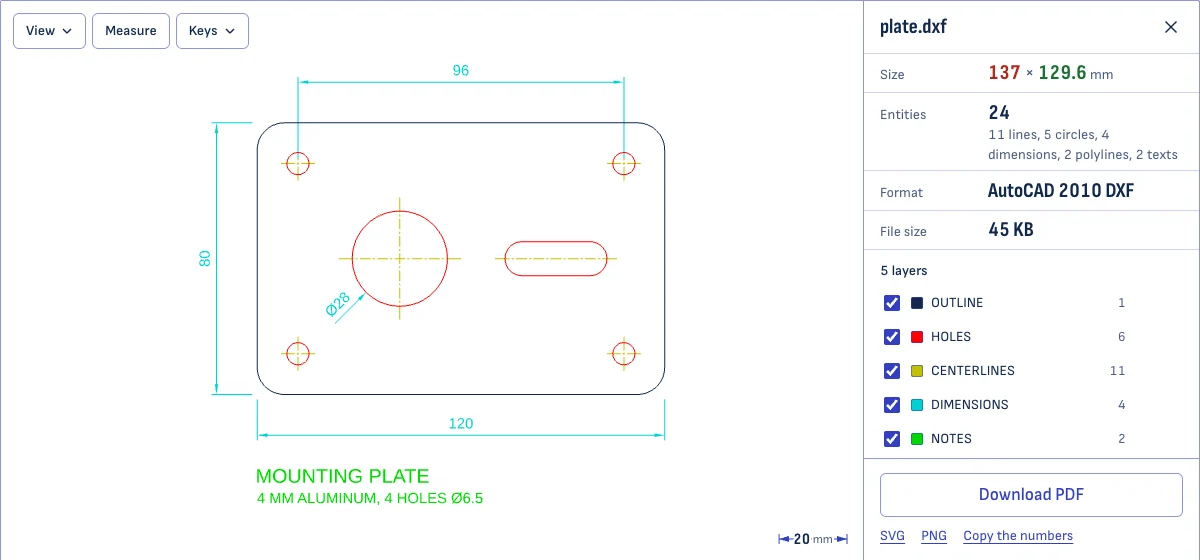
A DXF file is a list of entities: lines, arcs, circles, polylines, splines, text and dimensions. Each one sits on a layer, and layers have names and colors. Parts that repeat, such as a screw or a door, are stored once as a block and placed wherever they are needed.
Most DXF files are plain text, which is why a small drawing can be a surprisingly large file. A binary form holds the same content in about three quarters of the space. Both open here.
DXF and DWG
| DXF | DWG | |
|---|---|---|
| Made for | Passing drawings between programs | Working in AutoCAD |
| Specification | Published by Autodesk | Not published |
| File | Usually text, larger | Binary, smaller |
| Read by | Nearly every CAD, laser and CNC program | AutoCAD and programs that license or rebuild its reader |
| Opens here | Yes | No: convert it to DXF first |
The two hold the same kind of drawing. If you have the choice, send a machine shop or a laser service a DXF.
Opening a DWG for free
A DWG needs converting before a browser can show it. Two free routes:
- ODA File Converter. A free program from the Open Design Alliance for Windows, macOS and Linux. Choose the folder that holds your DWG files, choose a folder for the results, pick a DXF version as the output and run it. Then drop the DXF here.
- Your CAD program. If the drawing came from a colleague, ask for a DXF. Every program that writes DWG can also save DXF, usually under Save As or Export.
Autodesk’s own web viewer opens DWG too. It needs an Autodesk account, and the file is uploaded to Autodesk’s servers.
What you can do with the drawing
- Switch layers on and off. Every layer is listed with its color and the number of entities on it. Show one layer alone to check what a laser would cut. Layers that are switched off or frozen in the file start hidden, as they would in a CAD program.
- Measure. Choose Measure and click two points. Points snap to the ends and middles of lines and arcs, to corners, and to the centers and outermost points of circles, so the distance is the drawing’s own number and not an estimate from the screen.
- Check the size and the unit. The overall width and height are shown in the unit the file names. If the file names none, you choose.
- Save a PDF. One page, at a standard scale, with every DXF layer kept as a PDF layer you can switch on and off in a PDF reader.
- Save an SVG. At the drawing’s real size in millimeters, with one group per layer and every color exactly as in the file. It opens in Inkscape, Illustrator and laser software.
- Save a PNG. The view as you see it, with the scale bar and your measurement.
Getting a DXF ready for laser cutting or CNC
Most trouble with a DXF at the machine comes from five things. You can check all of them here before you send the file.
- Wrong size. Look at Size. If a part that should be 120 mm wide reads 4.72, the drawing is in inches; if it reads 3,048, it was drawn in millimeters and labeled inches. Fix the unit in the program that made the file, or tell the machine’s software which unit to use.
- Things that should not be cut. Dimensions, notes and center lines often travel along in the file. Hide their layers here to see what is left, then delete those layers or move the cut lines to a layer of their own before exporting.
- Open outlines. A shape can only be cut out if its outline closes. Measure across a corner that looks closed: if the two ends do not snap to the same point, there is a gap.
- Text. A machine has none of your fonts. Convert text to outlines in your CAD or drawing program before exporting.
- A version the machine cannot read. If the machine’s software rejects the file, save it as an older DXF version, R12 or 2000. Older versions hold fewer kinds of entity, and every program reads them.
What is drawn, and what is not
Lines, arcs, circles, ellipses, polylines, splines, points, hatches, text, dimensions and blocks are drawn, in their layer’s color. Dashed, hidden and center lines are drawn with their dashes.
Some things a CAD program shows are missing or simplified here:
- Layouts. The model space is shown. Paper space layouts, with their title blocks and scaled views, are not. If the model space is empty, the layout stored with it is shown instead.
- Fonts. All text is drawn in one typeface. Bold, italic and font changes inside a text are ignored.
- Line widths. Every line is drawn thin, including wide polylines.
- 3D. A drawing with depth is shown flat, from above.
- Entities that are not drawn. Images, leaders, tables, multilines and 3D solids are left out. When a file has any, the page counts and names them, so you know the picture is incomplete.
Questions
Is my drawing uploaded?
No. The file is read and drawn by your own browser. Nothing is sent to a server, so a drawing you are not free to share stays on your device. To see for yourself, open the sample, switch off your connection, then open your own file: it opens all the same.
Can I open a DWG file here?
No. DWG is AutoCAD's own format, and no browser tool reads it reliably. Convert it to DXF first: the ODA File Converter is free for Windows, macOS and Linux and converts whole folders at once. Drop a DWG on this page and it shows you these steps.
The size looks wrong. Why?
Usually the unit. A DXF stores plain numbers and, separately, a note saying which unit they are in. Many programs leave that note empty or leave it on inches for a drawing made in millimeters. If the size here is 25.4 times too large or too small, change Units to the unit the drawing was made in. Every size and measurement follows.
Which DXF versions open?
All of them from AutoCAD R12 to the current format, which AutoCAD has used since its 2018 release. Both forms of the format open: the common text form and the smaller binary one. Older files written in Japanese, Chinese, Korean, Cyrillic and other code pages keep their text.
Why does the text look different from my CAD program?
All text is drawn in one typeface, Arimo, whatever font the drawing names. Arimo has the same letter widths as Arial, so labels take up the room they were given. The single-line fonts that many CAD programs use (SHX fonts) are not available in a browser. Chinese, Japanese and Korean text is drawn in Noto Sans.
How large a drawing can I open?
In testing, a 50 MB drawing with 680,000 entities opened in five seconds on a laptop and moved at full speed afterwards. Reading happens in the background, so the page stays usable, and you can cancel. On a device without graphics acceleration a drawing that large is slow to move, and the page tells you so.
Can I edit the drawing?
No. This is a viewer. You can hide layers, measure and save a PDF, SVG or PNG. To change the drawing you need a CAD program. LibreCAD is free and edits DXF on Windows, macOS and Linux.
How do I print a drawing to scale?
Save it as a PDF. On A4 or US Letter the drawing is fitted at the largest standard scale that fits the page, such as 1:1, 1:2 or 1:5, and the scale is printed in the corner. Print the PDF at 100%, not "fit to page", and it comes out at exactly that scale. Choose Actual size to get a page cut to the drawing at 1:1.